A practical Mac control panel for an old tablet
The best control panel is not the one with the most buttons. It is the one that removes the small interruptions from your work.
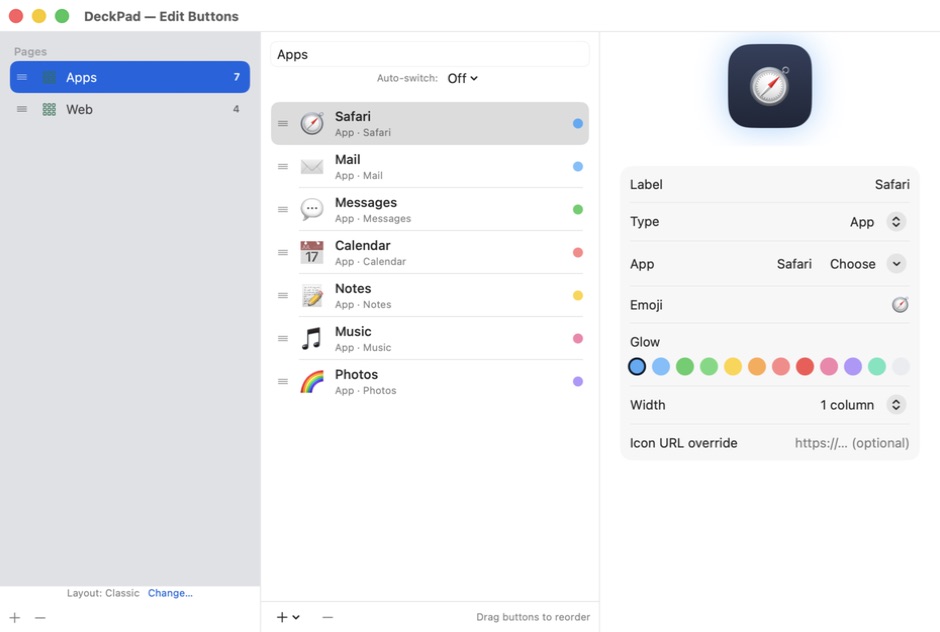
A control panel earns its place by removing small interruptions.
Opening the same four apps. Starting the same Shortcut. Switching audio. Typing the same short message. Moving a window. Setting up a meeting. None of these tasks is difficult, but each one breaks the work in progress.
An old tablet can hold those actions without becoming another general-purpose computer.
Build around moments, not software
Start by writing down the moments when your hands leave the work. Do not list every app on the Mac. List the transitions:
- beginning a focus session
- joining a call
- switching from writing to editing
- starting music
- sharing a screen
- cleaning up at the end of the day
Each moment can become a page or a small group of tiles.
Keep one page for one context
Pages are easier to remember when they describe a moment. “Morning,” “Writing,” and “Recording” are more useful than a page called “Misc.”
DeckPad lets you reorder pages and buttons, choose a layout and skin, and change connected decks from the Mac editor. Smart Profiles can also activate a page when a chosen Mac app comes to the front.
Prefer visible actions
The tablet is good at actions you want to see and touch. It is not a replacement for a keyboard shortcut sheet or a full automation editor. Configure complex work on the Mac, then give the tablet a clear button that starts it.
That separation keeps the screen readable and the action logic where it belongs: on the Mac.